


To delete a message from your Linphone conversation, follow the steps below:
Delete a message from a conversation
1. Click on the three dots to the left of your message.
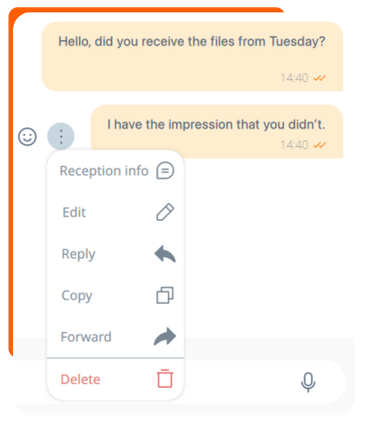
2. Click on “Delete” in red.
3. A confirmation window appears with the following options:

- “Delete for me”: the message disappears only from your view. It remains visible to your contact(s).
- “Delete for everyone”: the message is replaced with “This message was deleted.” for all participants. On your side, you will see “You deleted this message.”
- “Cancel”: closes the window without making any changes.
Note: For messages sent more than 24 hours ago, the “Delete for everyone” option is greyed out and unavailable. Only “Delete for me” remains accessible.
💡 Tip: Use this feature to keep your conversations organized and remove messages you no longer need.
Learn more
Would you like to know the status of a message? Find out how to check message status.
To delete a message on Linphone, follow these steps.
Deleting a message
- In the conversation, press and hold the message you want to delete.
- Select the Delete this message option .
- A pop-up window appears, allowing you to delete the message for everyone or delete it only for yourself by clicking “Delete for me”.
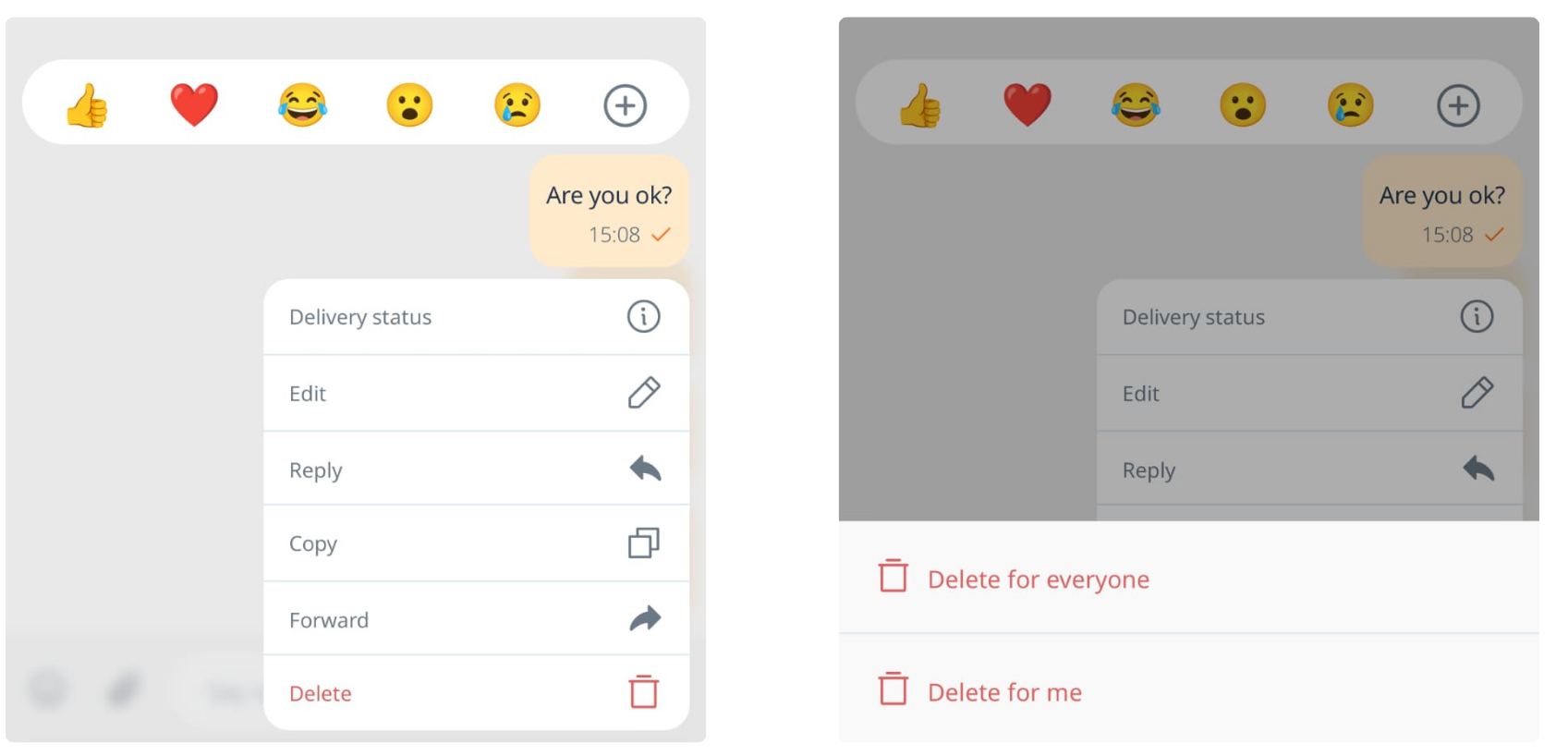
Clicking elsewhere allows you to cancel the operation.
Note: For messages sent more than 24 hours ago, the “Delete for everyone” option is greyed out and unavailable. Only “Delete for me” remains accessible.
Learn more
Would you like to know the status of a message? Find out how to check message status.